# FAQ
Source: https://docs.zaidkayed.com/FAQ
Frequently asked questions.
No, Filtrix is focused on scanning products and finding out issues, it
doesn't need to inject any code anywhere, therefore it's completely safe to
install.
For performance reasons, we have set the app to scan until it fills the
current page the user is on, if you would prefer a full scan regardless you
can simply click on [Allow Full Scan](/menu-actions) from the action menu
and it will keep going.
# Auto pricing
Source: https://docs.zaidkayed.com/auto-pricing
# Availability
Source: https://docs.zaidkayed.com/filter/availability
This filter is found natively in Shopify filtering system.
## General
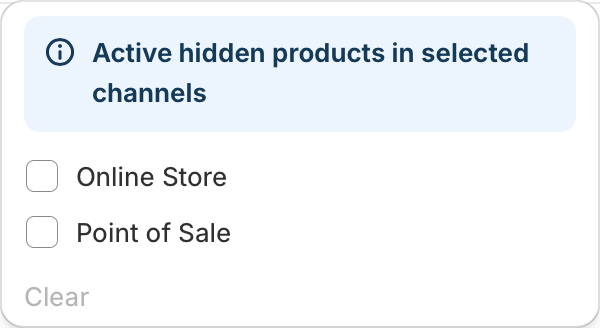
Availability filter finds products which are hidden on a specific channel while being active in your store.
Choose `multiple` fields
Availability filter searches only for products with `Active` status
The importance of this filter is in finding products that are supposed to be selling on all channels, yet it's hidden.
## Example
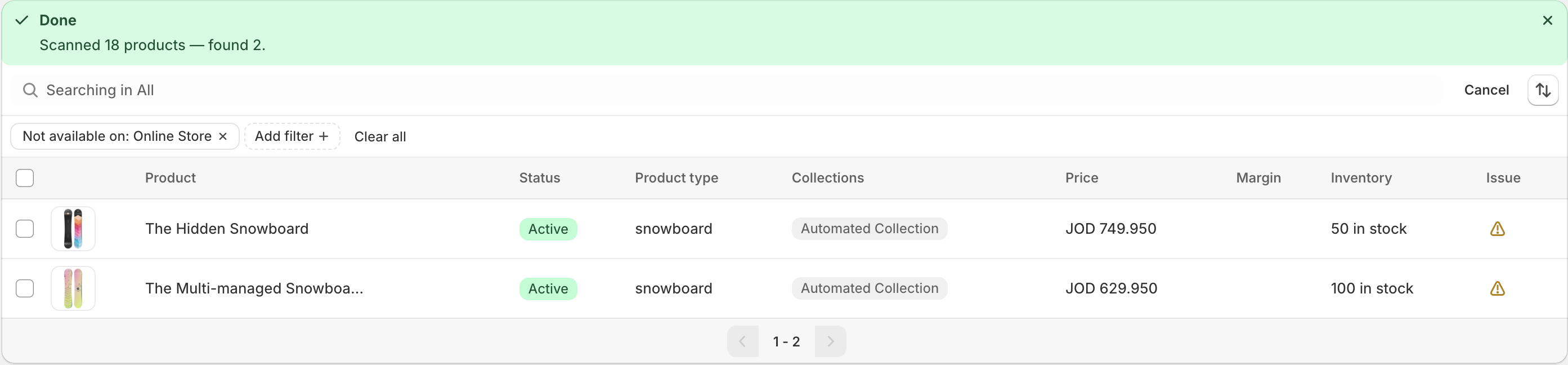
Filtering by `Online store` filter to find hidden products there.
Here is the result of using the filter, although the products are active, if we search
for them on the online store:
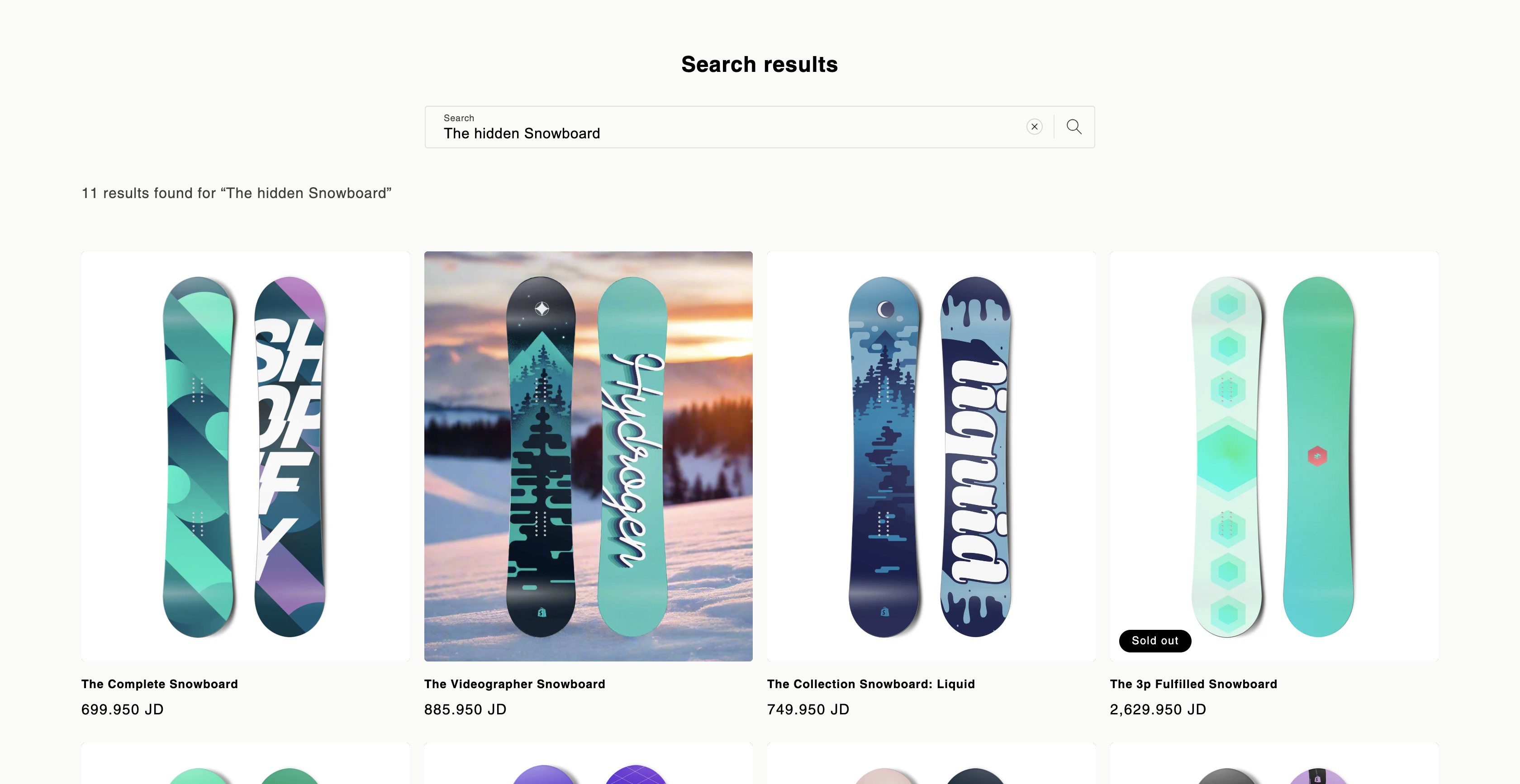
The Snowboard doesn't appear on the `Online store`.
# Basic filters
Source: https://docs.zaidkayed.com/filter/basic
These filters are the commonly found filters in the Shopify admin, they are made for general categorization rather than specific issue filtering.
## Product status
The `Status` filter limits filtering to the specified statuses. Usually you would want to look for 'Active' products as they are what affects your store.
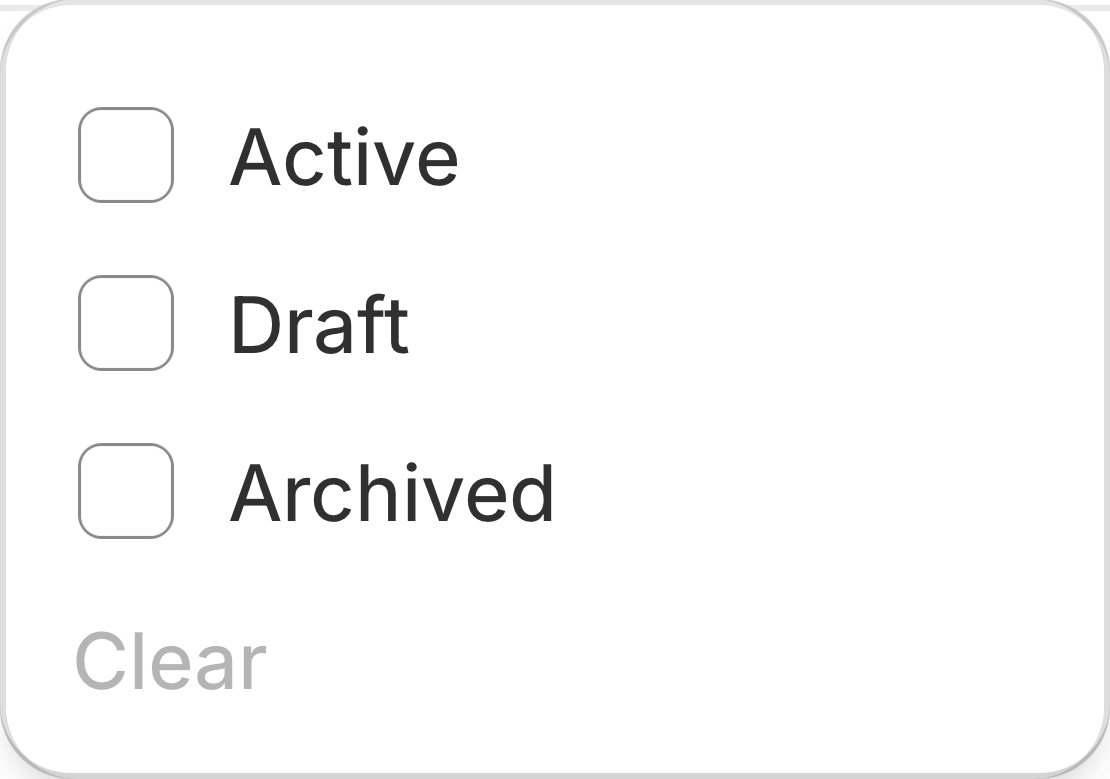
Choose `multiple` fields
## Product type
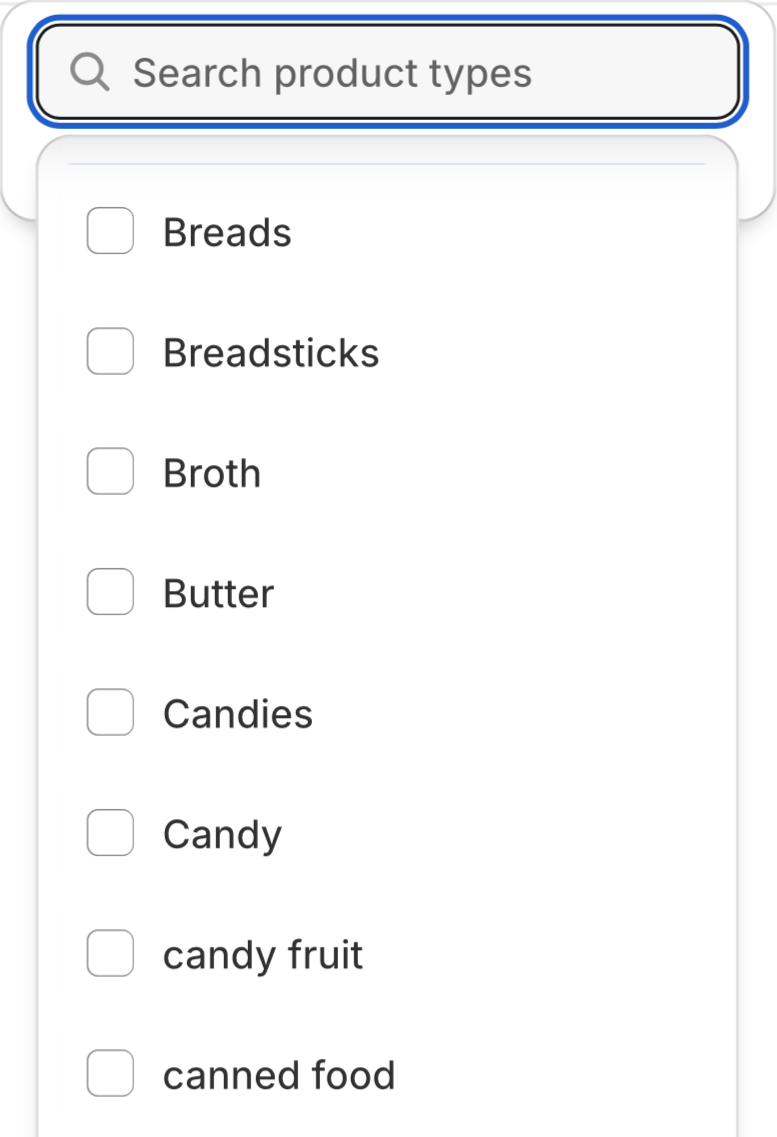
The `Product type` filter limits filtering to the specified product types. Use it if you are investigating issues with a specific product type.
Choose `multiple` fields
## ~~Product category~~ (Coming soon)
# Collection
Source: https://docs.zaidkayed.com/filter/collection
Search for specific collections or exclude them from your search.
## General
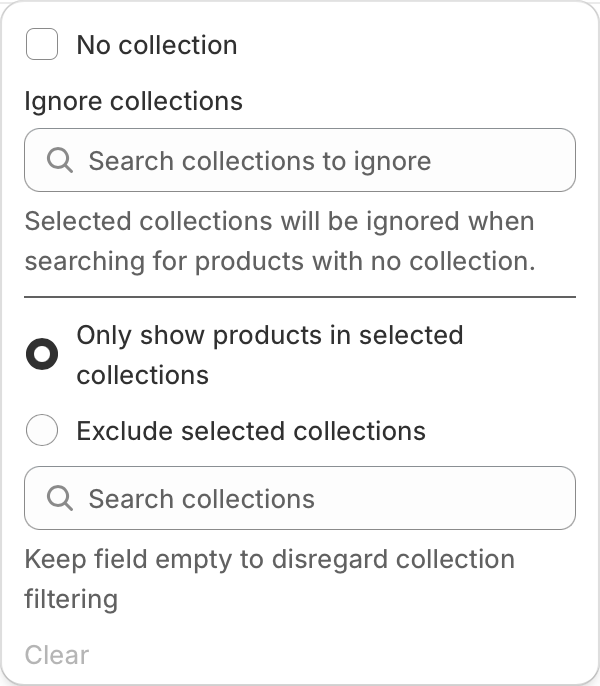
Using the collection filter, you could find products which are not on a collection, or use it to exclude all products except for a specific collection, you could also search for products only within a collection.
## No Collection
`No collection` filter finds products which don't have any assigned collection.
`Ignore collections` could be combined with `No collection`, this way you could exclude collections which you might have assigned to all products.
This filter's point is to ensure products are assigned a meaningful collection, instead of the usual `All products`, `Best selling`, and `New products` collections. This could be achieved using both the `No collection` & `Ignore collections` filters.
## Collection filtering
In `Search collections` search for collections you want to select, when you have selected them you could either limit your filtering to only those collections or exclude them completely from your search.
The app filters the first 30 collections. If you see this as a limitation, reach out.
# Description
Source: https://docs.zaidkayed.com/filter/description
Find products with an empty description.
## General
Descriptions are essential for gaining the customer's trust especially with expensive products, it's also improves SEO drastically.
This filter ensures your products have a description, any product with an empty description will be filtered.
## No Description
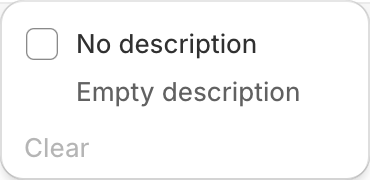
The filter is straightforward, simply toggle the checkbox and you will be filtering the products.
## Example
Filtering by `No description`.
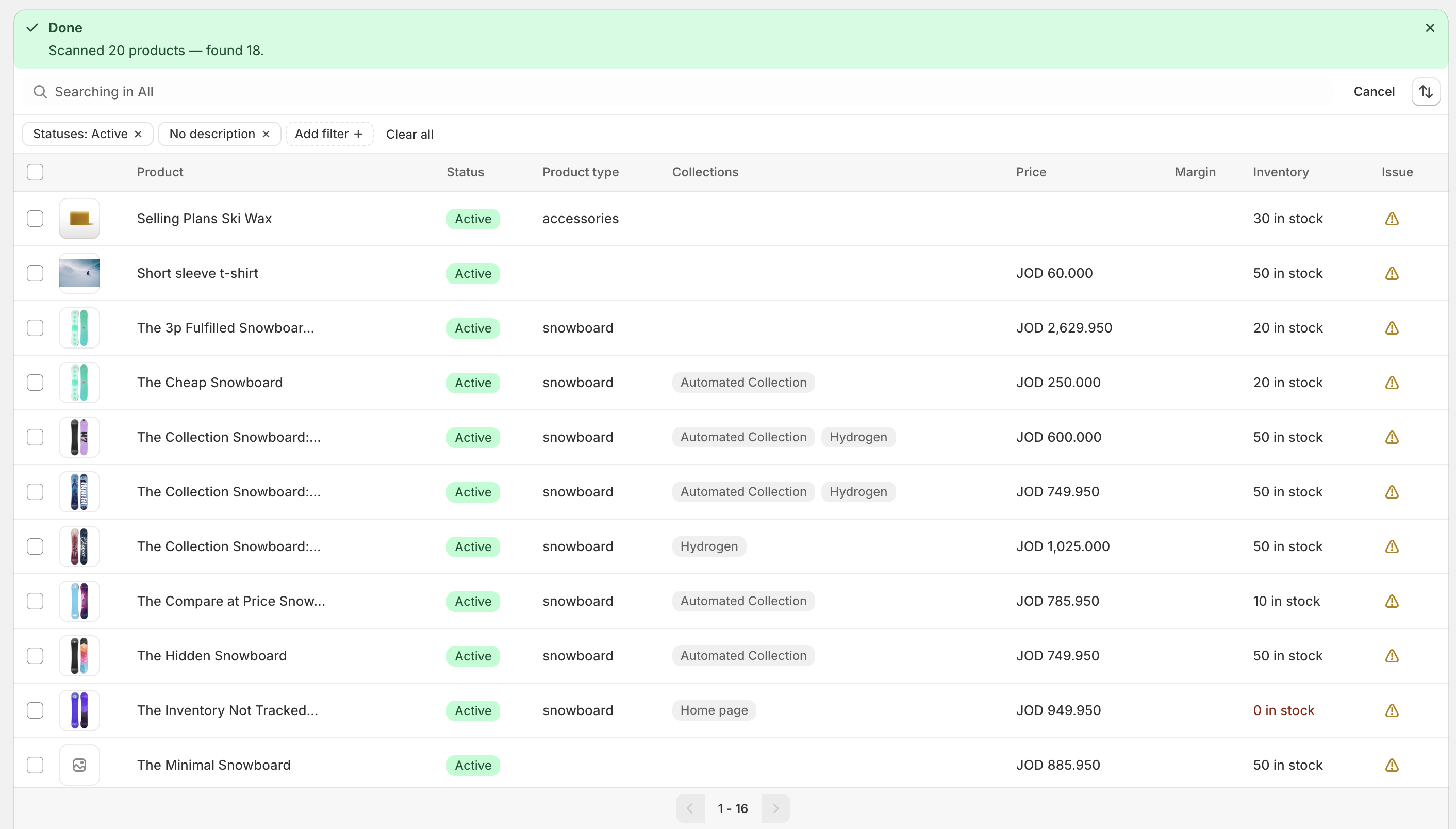
Here is the result of using the filter, This shows that this store is missing out on some sales and SEO improvements.
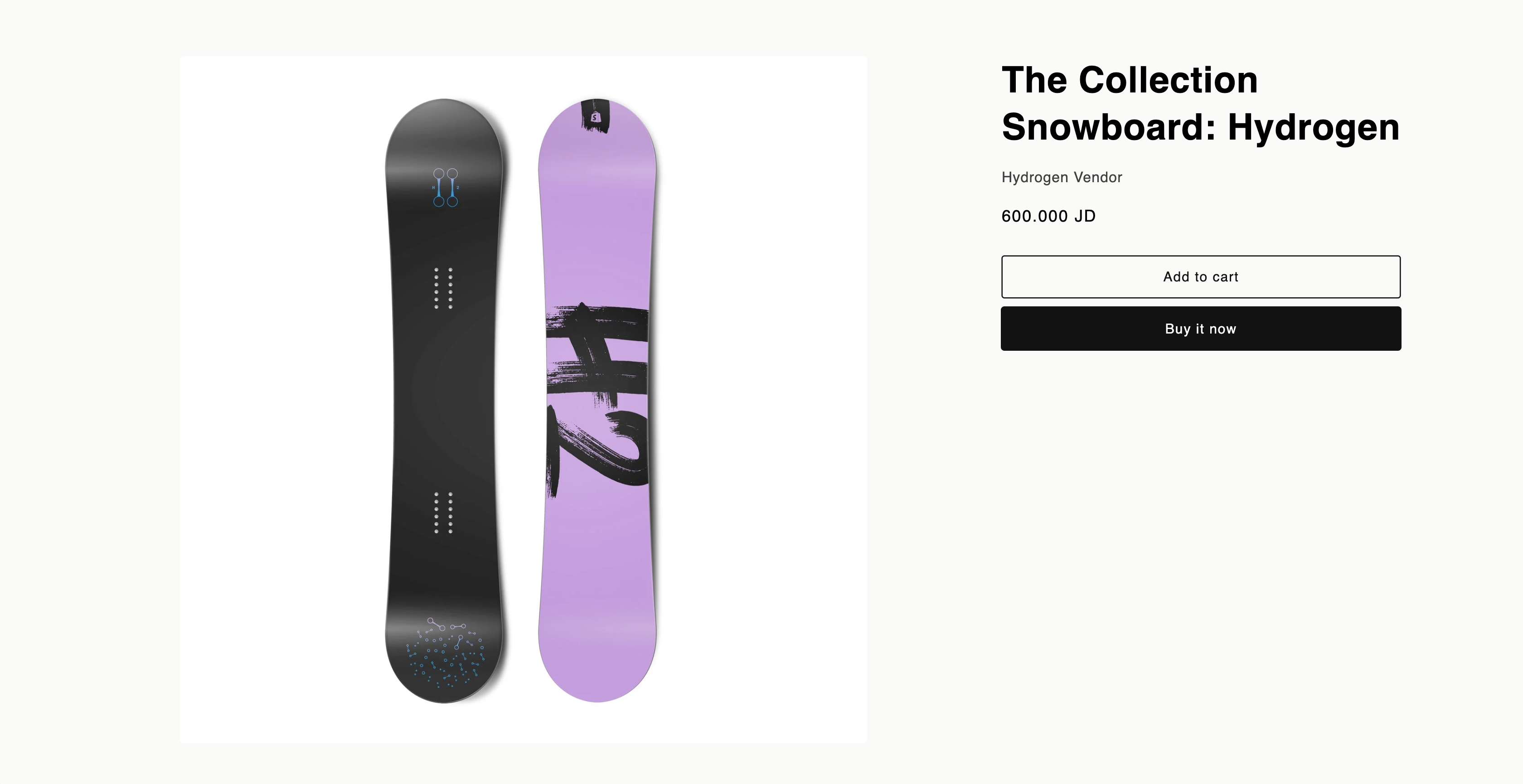
This shop is missing out on a lot of sales, since their product is expensive and they are not displaying it with enough information to convince the customer.
# Images
Source: https://docs.zaidkayed.com/filter/images
Find products missing images.
## General
Images are essential in online shopping, the ambiguity is greatly decreased once a visual representation is presented.
This filter focuses on ensuring your products have images, you could be more strict and ensure every single variant has an image.
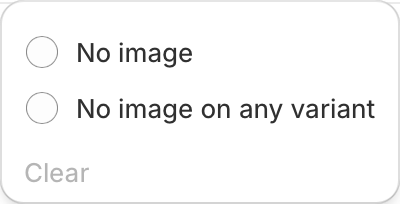
## No Image
Looks for products with no image set to the product at all.
## No Image on Any Variant
Looks for products with any single variant without an image, if any variant doesn't have an image it will be included in the filtering.
## Example
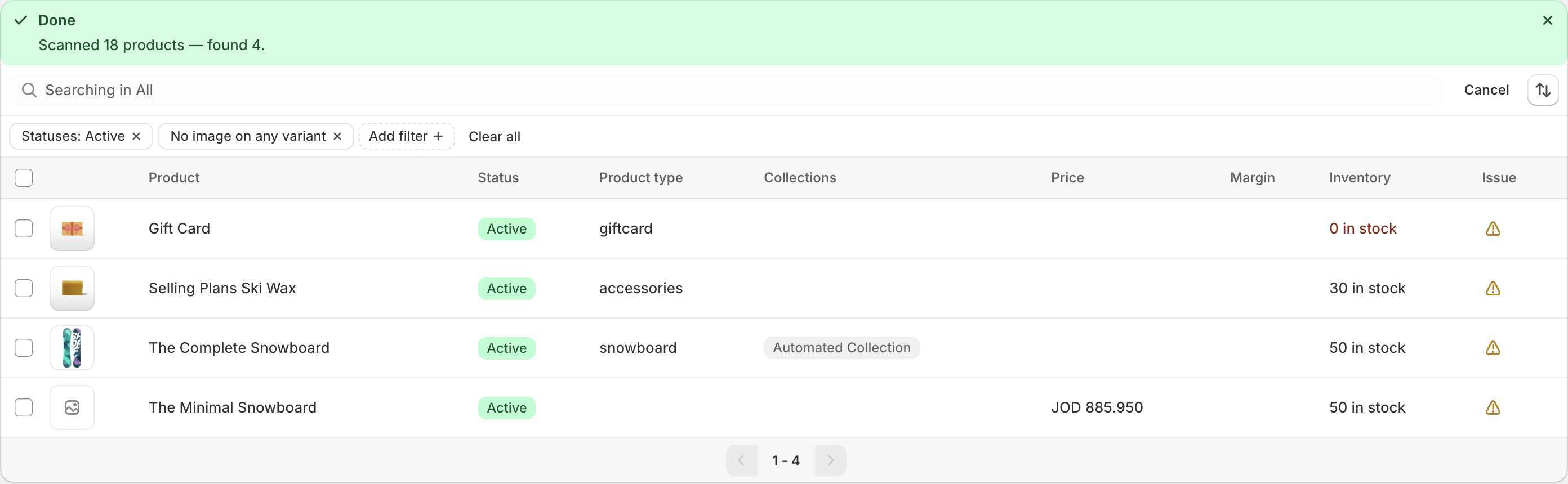
Filtering by `No image on any variant` to find products without an image on a variant.
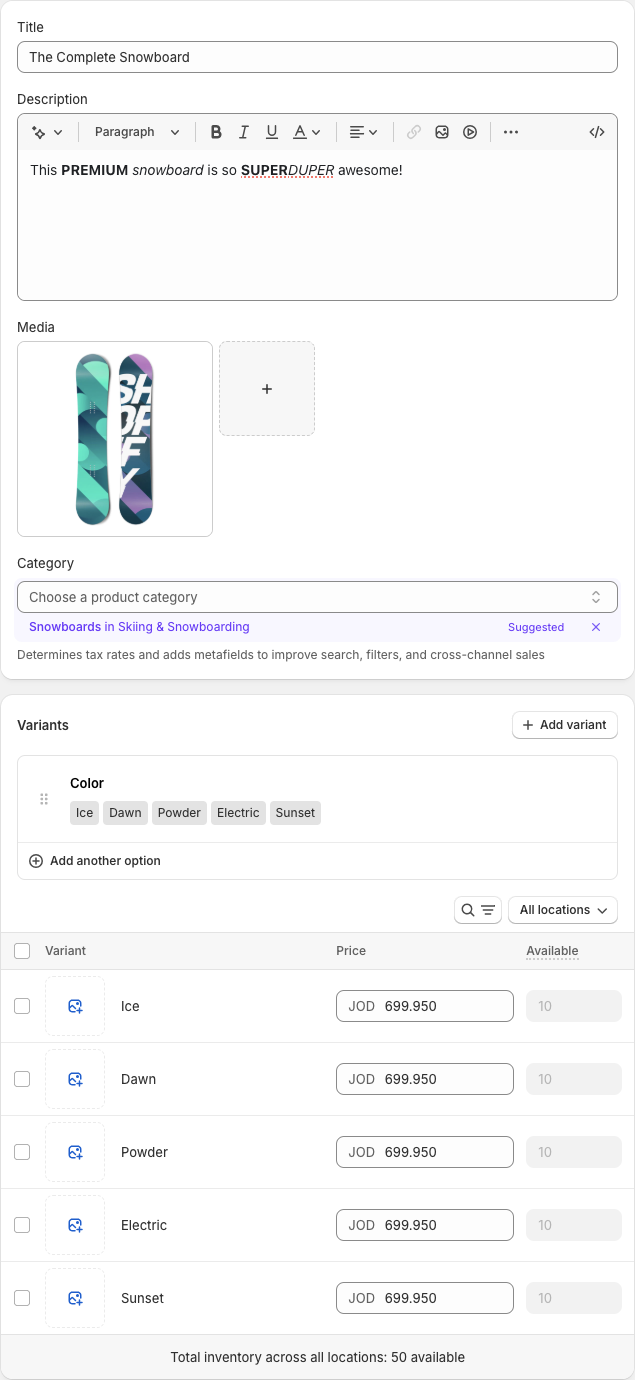
Here is the result of using the filter, if we look into the product `The Complete Snowboard` in the Shopify admin and store.
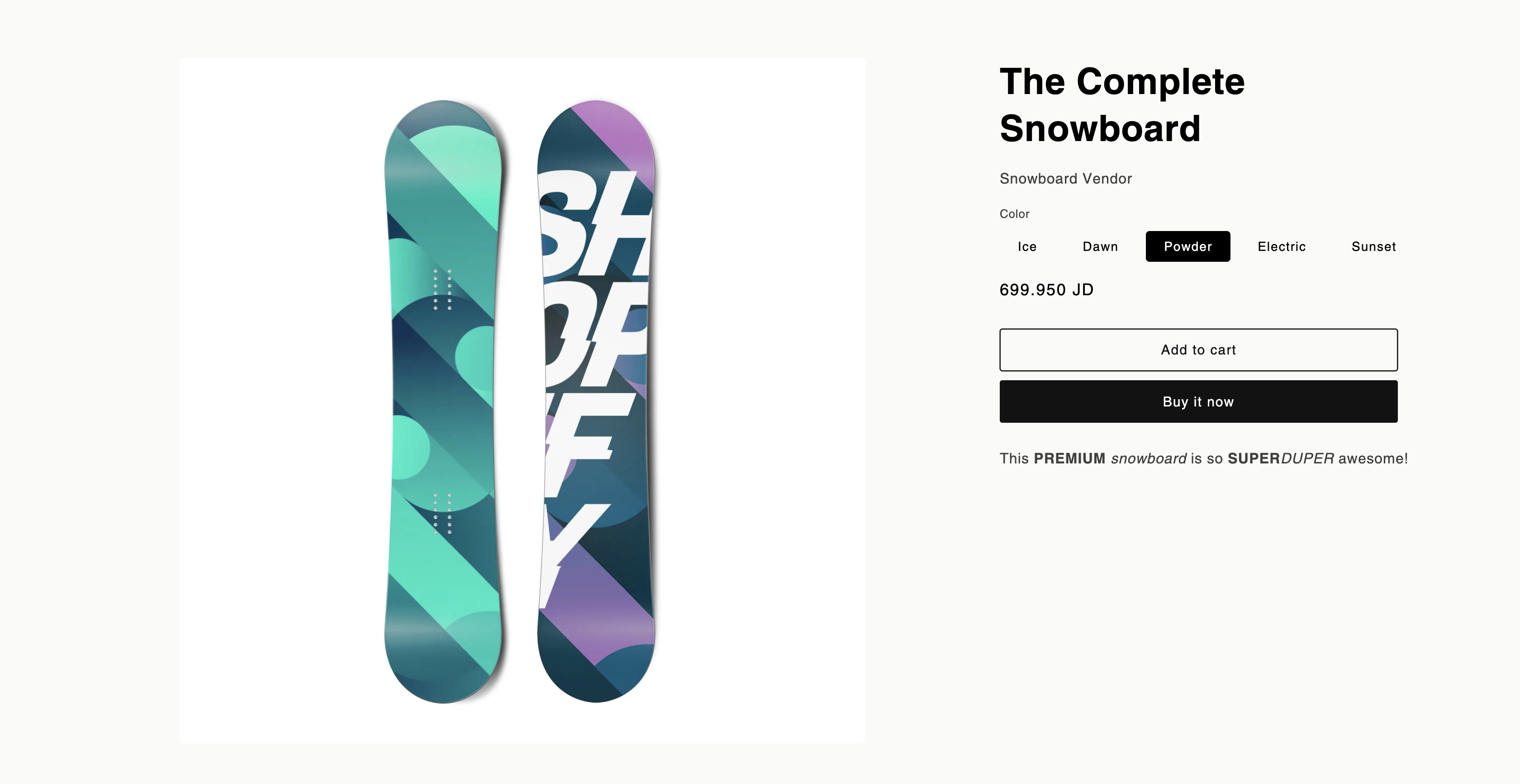
### Store
In the store the product only has one image, going through the variants shows the same image.
### Admin
Only one image assigned, the variants don't have any single image.
# Inventory
Source: https://docs.zaidkayed.com/filter/inventory
Comprehensive total/variant stock filtering.
## General
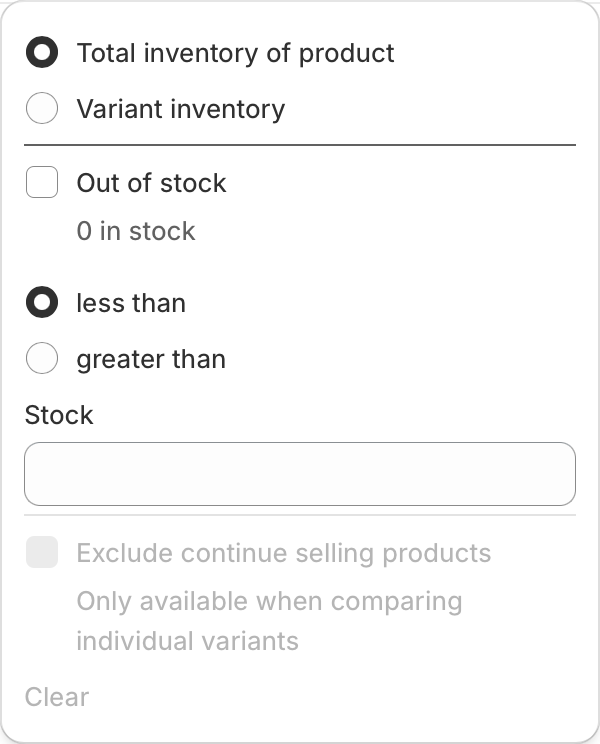
The `Inventory` filter provides means to look for products with specific stock amount either per product or per each single variant.
`Out of stock` checkbox is self-explanatory, filters out products with exactly zero stock, it works for products with continue selling turned off only.
`Stock` field you can choose a stock number and find products with higher or lower stock per total/variant stock.
`Exclude continue selling products` excludes any variant if it has continue selling checked, this helps stores search exclusively for products with tracked stock.
## Total Inventory
Relating to stock of the product, if there are multiple variants then stock is summed.
`Exclude continue selling products` Can't check since exclude continue selling is per variant.
## Variant Inventory
Relating to individual variant stock inside a product.
If any variant matches the criteria the product will be filtered.
# Margin
Source: https://docs.zaidkayed.com/filter/margin
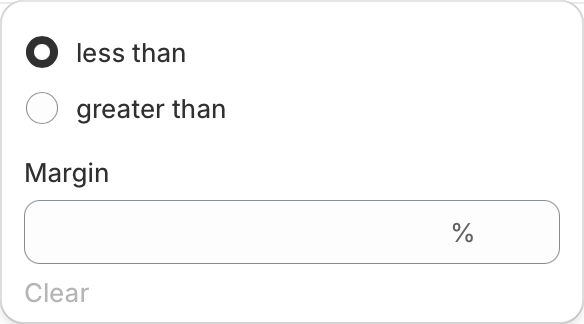
Filter out products less than/greater than a specified margin.
Ensure accurate cost for products to get reliable results.
## General
Margin is the percentage of profit made on a product.
The `margin` filter helps you to see which products are selling for lower than the desired margin or higher than it.
Margin value is entered as a percentage.
For optimization, margin column in filtering result is empty unless choosen.
## Example
Filtering by `margin` `<5%`.
This product is not profittable enough, if we review it in admin:
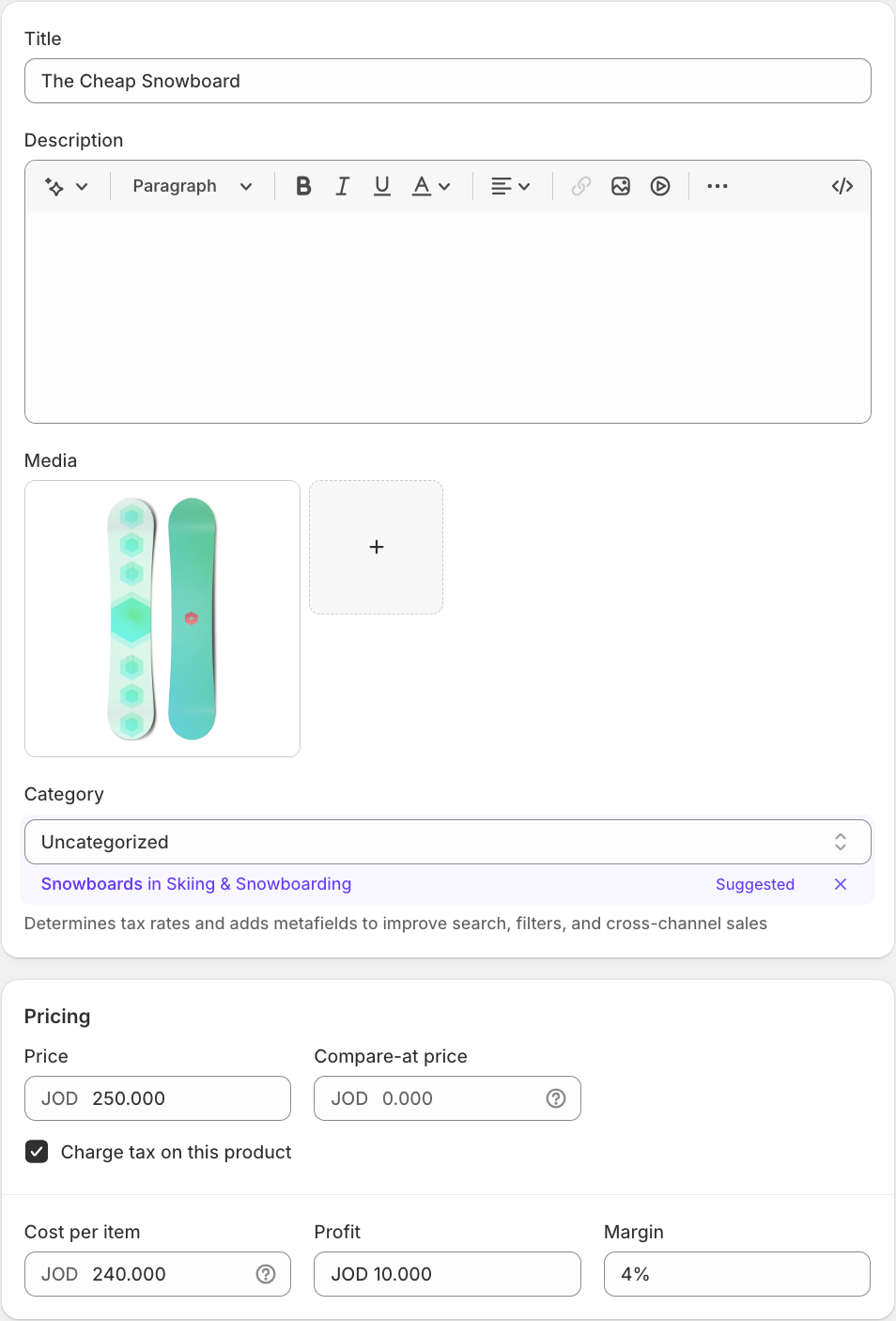
Profit (margin) is only `4%`, it needs to be increased.
The same could be done for products with high margin.
# Price
Source: https://docs.zaidkayed.com/filter/price
Filter out products by prices & find zero-priced products.
## General
Control which products you want to filter. For example, if you want to ensure a reasonable margin on high-priced products, you can combine the `price` and `margin` filters to check that all products above a certain price meet the margin you specify.
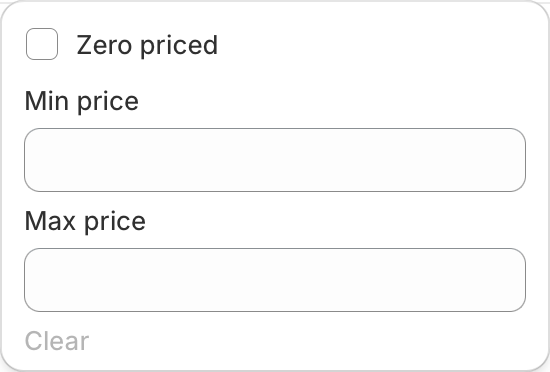
`Zero priced` checkbox gets all products which have a price set to exactly zero.
Can't be combined with price range filter.
You could set `Min price` & `Max price` to search for products in that range.
## Example
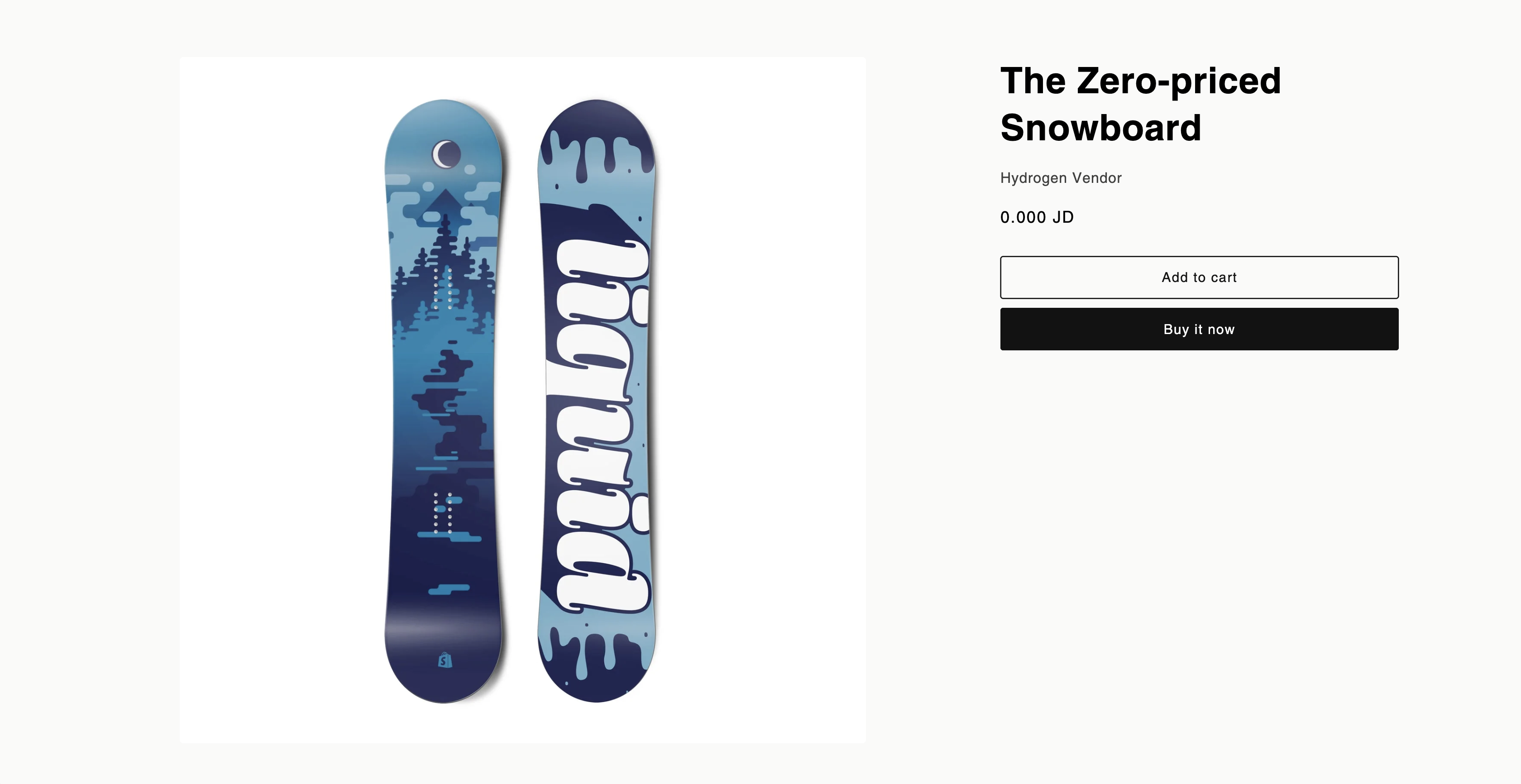
Filtering by `Zero priced` filter.
We have found a product which sells for exactly zero.
# Getting started
Source: https://docs.zaidkayed.com/index
This quick guide gives you a thorough summary of what the app Filtrix does and how it can help improve your store
## What it does
Filtrix helps you track your store products and maintain a clean catalog through filtering out products with:
* No images
* Missing collections
* Zero-priced
* Low selling margin
* Channel visibility
Follow our quickstart guide to do your first scan.
## Who it's for
Filtrix could be used for all stores, though it's ideal for stores with:
* Large catalogs
* Unmanaged products
* Messy catalogs
Maintaining thousands of products becomes messy and difficult, so Filtrix manages consistency and organization.
## What you'll learn in this guide
The guide will help you be fully comfortable using the app.
Setup the app and run your first scan.
Know what each filter does and how it benefits you.
Explore different use cases that suit your own store.
# Limitations
Source: https://docs.zaidkayed.com/limitations
Limitations in Filtrix due to Shopify's api or technical impossiblity.
# Menu actions
Source: https://docs.zaidkayed.com/menu-actions
Logic behind the menu actions.
# Quickstart
Source: https://docs.zaidkayed.com/quickstart
Get started using the app and run your first scan in minutes.
## Main Page
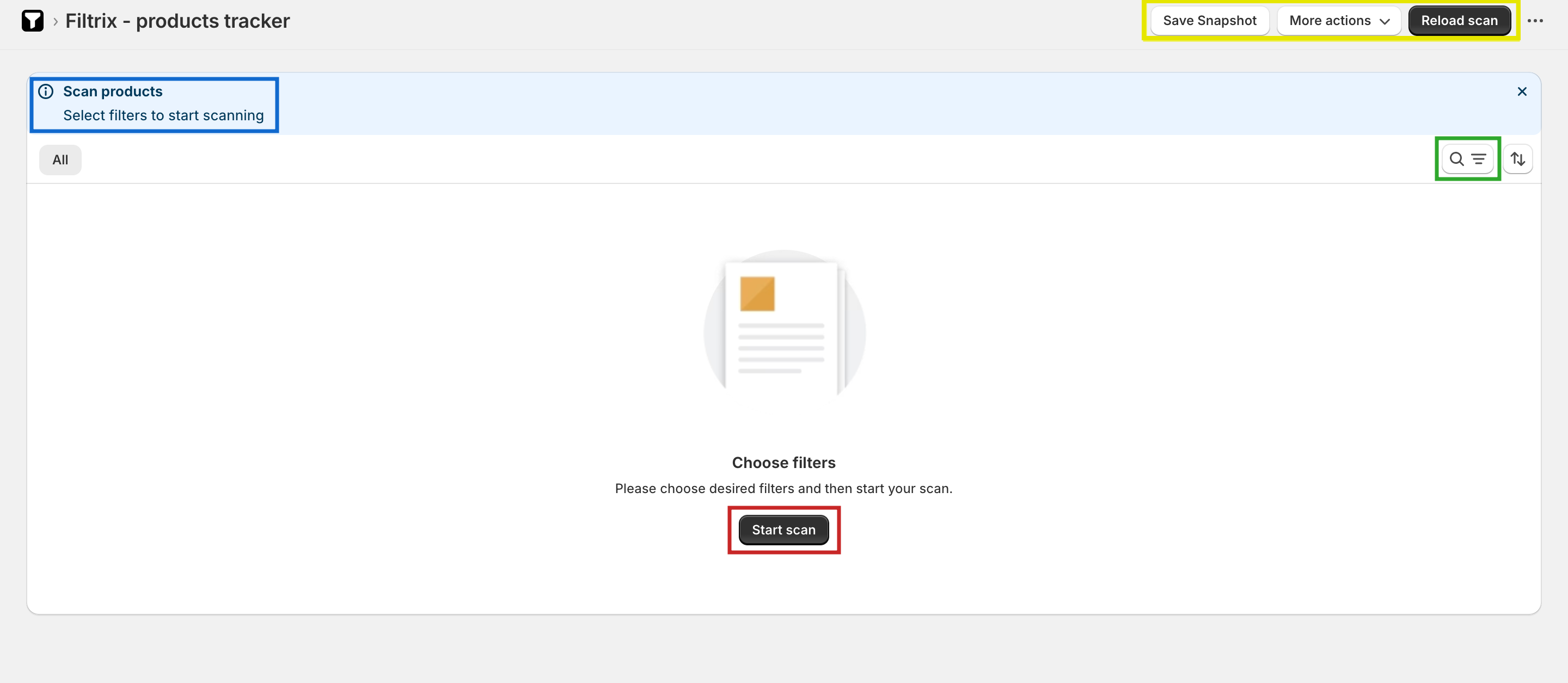
This is the main page of the app, it's where you do the filtering and create snapshots - we'll come to that in a minute -,
we will start by explaining each set of actions and how it works.
| Color | Description |
| ------------------------------------------------------------------------------------------------------------------------------------------ | -------------------------------------------------------------------------------- |
|
Green | Opens the filters |
| Red | Start/reload scan (while scanning) |
| Yellow | Actions to create a snapshot, pause/resume/reload scan, and continue a full scan |
| Blue | Info / errors of the current scan process |
## First Scan
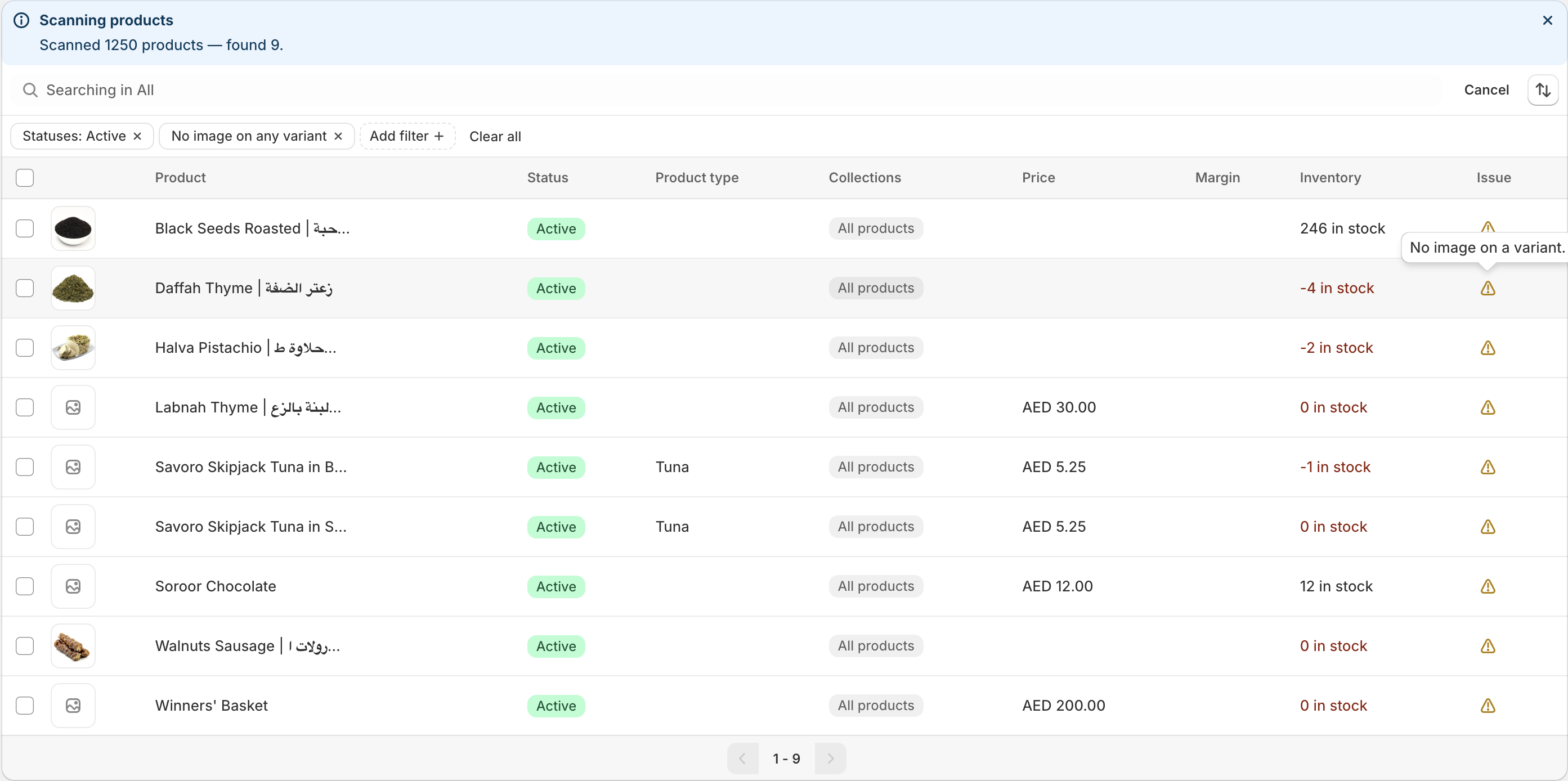
There are many filters that you could use simultaneously, but for the
purpose of illustration we will focus on two.
We only want to focus on active products
This filter finds products with a variant that doesn't have an image.
The scanning process starts immediately.
The reason why the app scans products in batches is due to the Shopify API limit, this prevents the app from querying all products.
A workaround exists, though it needs more setup which is why it's a paid feature.
## Scan Result
Products with variants won't have a price displayed
We found products with missing images
Learn more about the images filter [here](/filter/images).
The scan here is paused, you could either pause your scan from the `More actions` in top right corner or it would stop once it fills the current page, you could override this limit by enabling `Allow full scan` in the same panel and it will keep going.
## Create a Snapshot
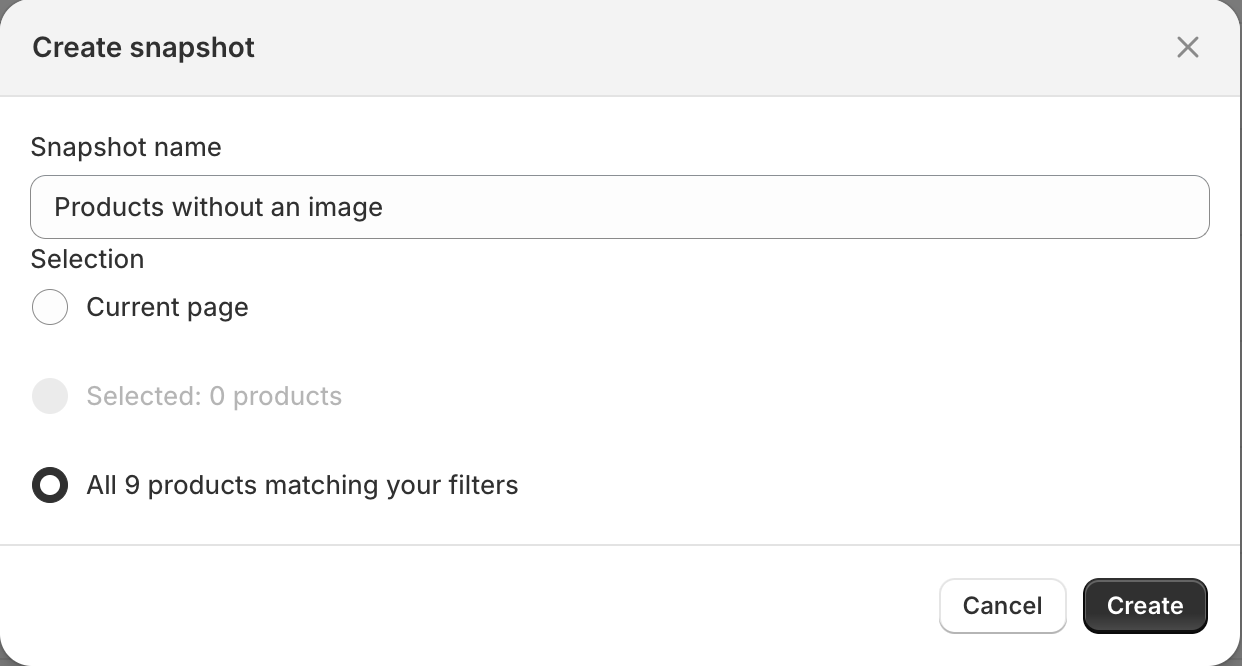
Now it's best to create a snapshot and save these products for later review.
To create a snapshot:
Your products are now saved inside an individual snapshot
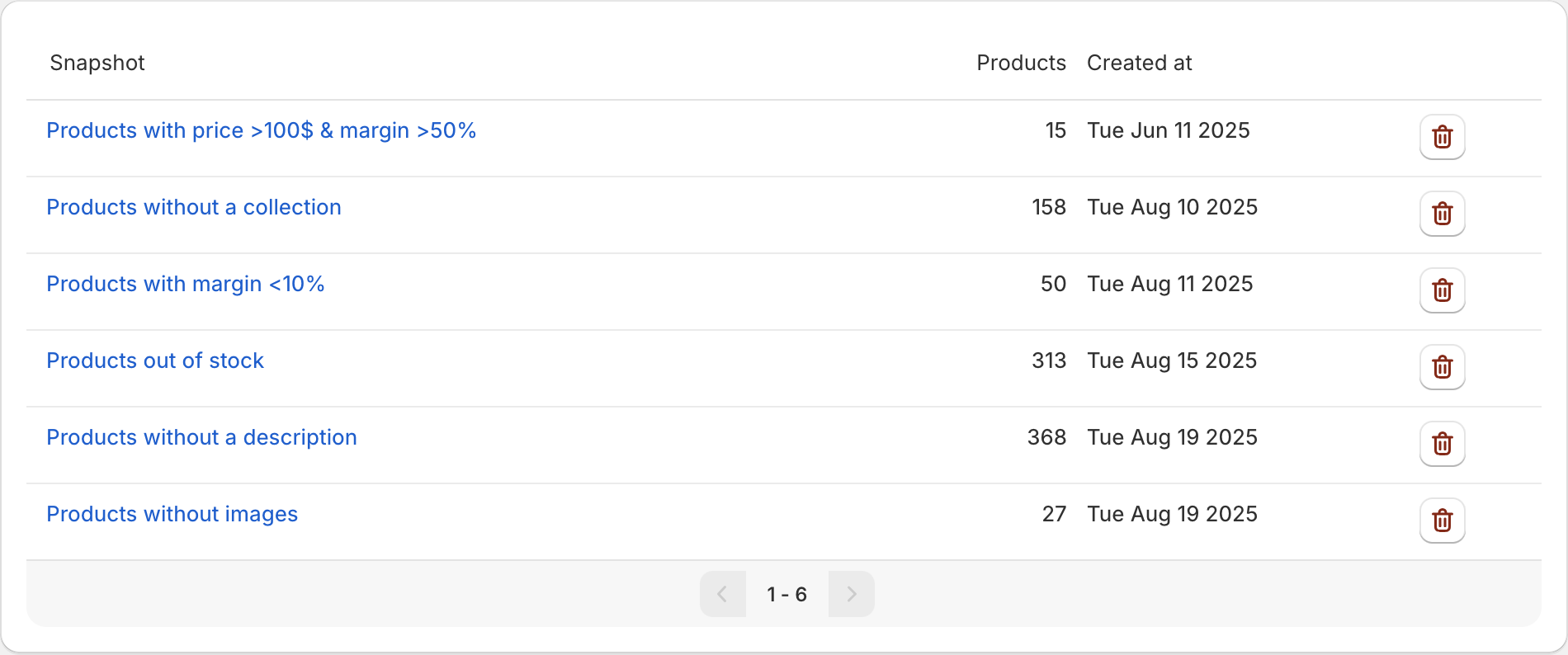
Go to the `Snapshots` page and you can view all your saved snapshots.
You can easily share the link to your snapshot to anyone and they could view the product list and update it accordingly.
# Settings
Source: https://docs.zaidkayed.com/settings
# Snapshots
Source: https://docs.zaidkayed.com/snapshots
Snapshots provide a means of grouping products related - or not - together in a single place.
## General
Snapshots allows you to save products in different groups and keep them for later review, or to perform further action.
Once you perform a product scan, you can select products and save them in a `snapshot`, this keeps them saved for anytime access.
## Create a snapshot
To create a snapshot refer to the [quickstart guide](/quickstart#create-a-snapshot).
## Uses
When you are filtering out products you want to fix, it wouldn't be practical to refilter each time you want to update those products,
through snapshots you can keep products you want to update organized.
Easily resume your work once you have got the data to fill in, once you update a product you can remove it from the list.
Here is a sample use case:
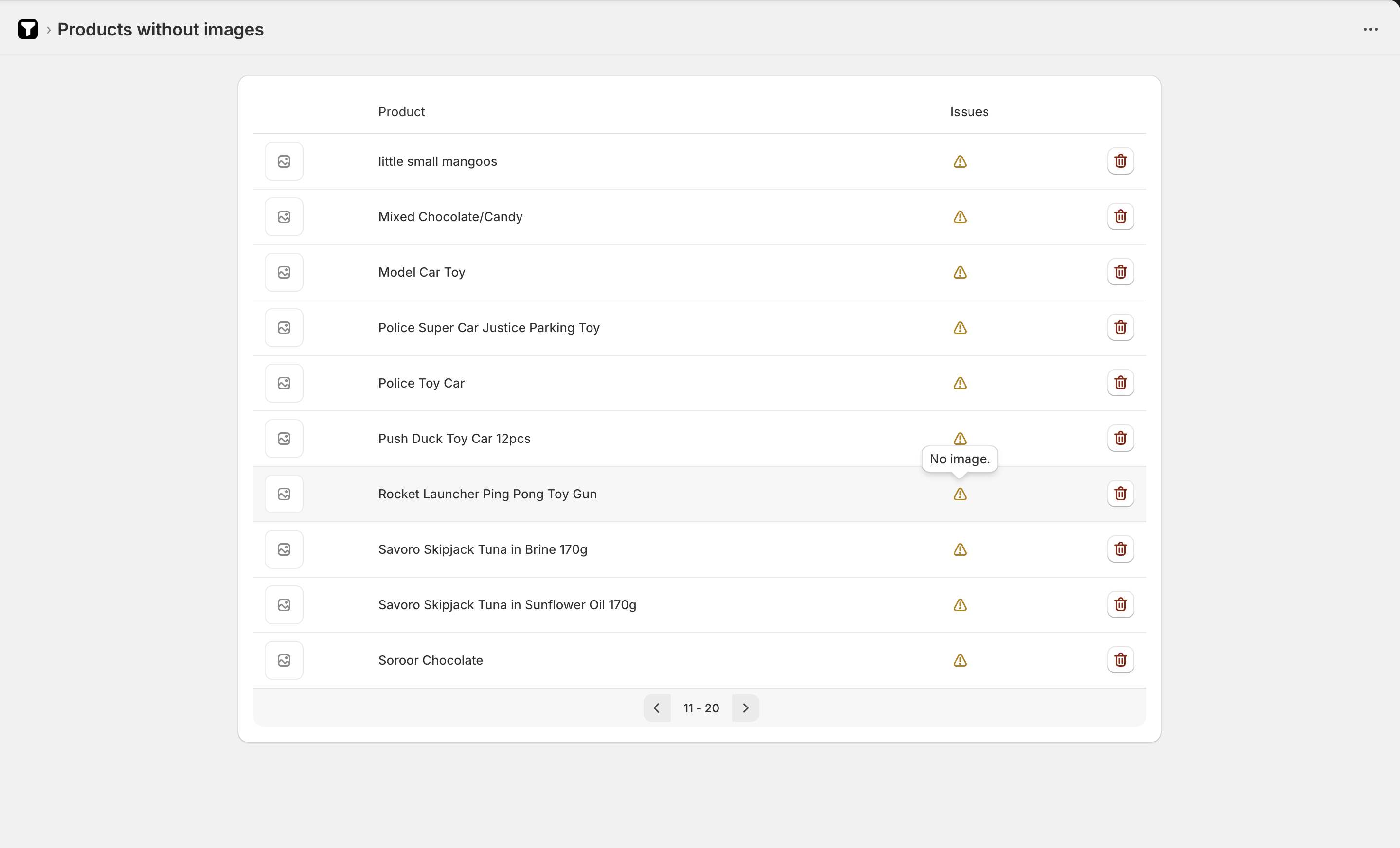
Sample `Products without images` snapshot: